41 changes shipped across 2 codebases last week. Almost all of it was Handl, and almost all of it was about one thing... what a project looks like once you open it.
Handl also moved into its new home at handl.works this week. Same product, better address.
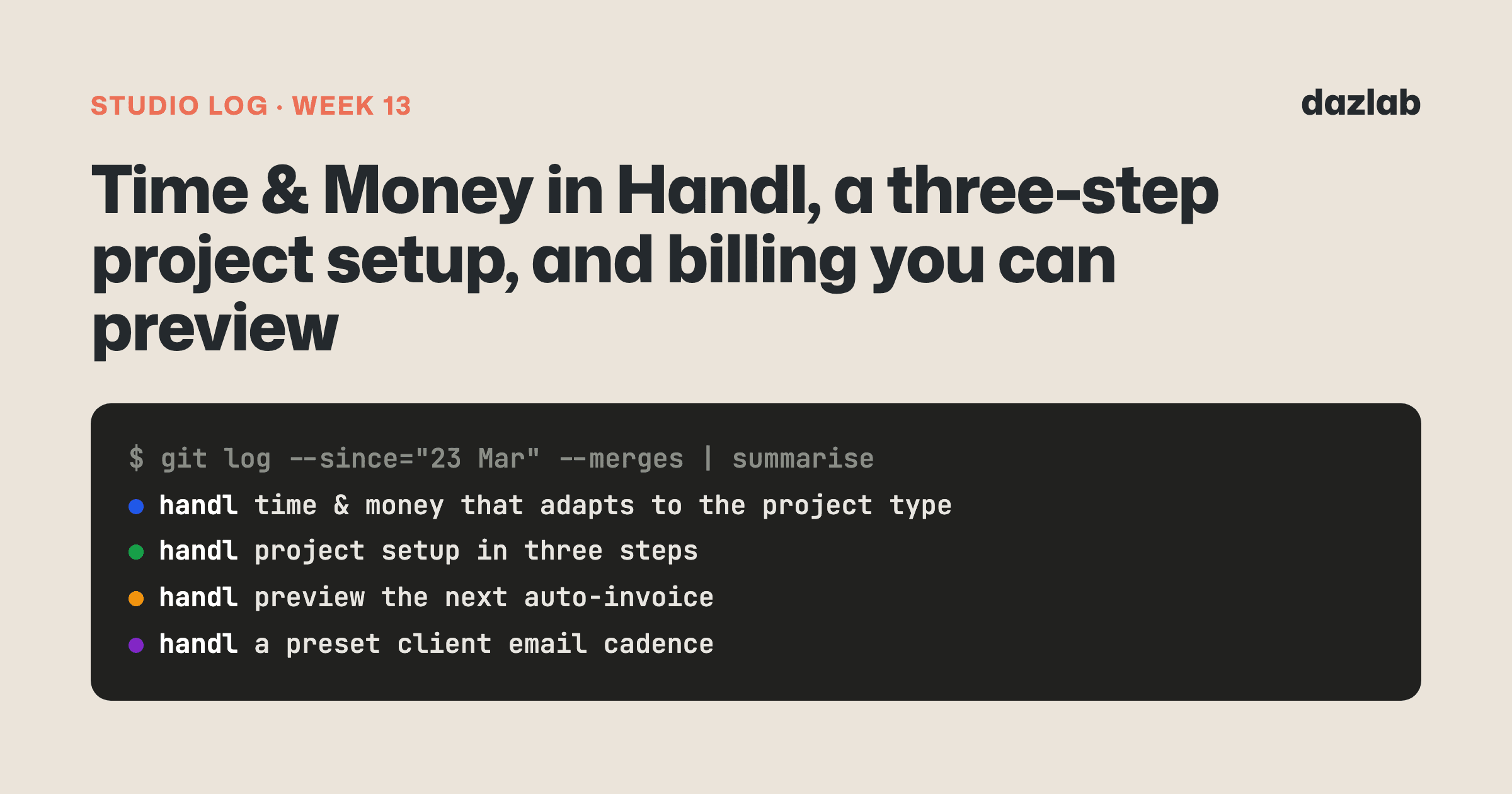
Handl: Time & Money, answer first
The usual way to check a project's numbers is a pile of totals. Hours, cost, revenue, margin, unbilled. All true, all useful, and none of them tells you whether to worry.
So we redesigned the Time & Money tab to answer the questions an agency owner actually asks. Am I making money on this? Who's using up the budget? Is anything about to go wrong? Know if a project is going sideways before the invoice does.
It adapts to how the project is sold. A fixed price project, a time and materials job and a monthly retainer make money in completely different ways, so they shouldn't share one screen. The health cards at the top change with the project type, and the header says which type you're looking at and which currency the numbers are in.
Pick your window. This week, last week, this month or all time. Retainers get a "this period" option too, so you can see how far through the month's hours you are.
Alerts, suggested for you. Set thresholds for budget used, margin below target, someone going over their weekly hours, or a project that's gone quiet. Handl suggests sensible alerts based on the project type, and anything that's firing shows right there in plain English. If nothing is, you get an all clear.
Your team, row by row. A table of who's logged what, with hours, cost, billable value and margin for each person. Click a row and it opens up to a day-by-day breakdown.
A trend chart. How the project has been tracking week by week, tucked away until you want it.
Estimate ranges for T&M. Time and materials work rarely has one number attached. You can now give a project a low and a high hours estimate and track against the range.
There's also a compact Time & Money card on the project Overview, so you get the headline without leaving the front page.
→ See how it works: cash flow · integrations → Free: invoice aging and chase tracker → Start a Handl trial
Handl: project setup in three steps
Setting up a project is now three steps: Details, Billing, Features.
Details is the name, client and project type. The type is a dropdown now, matching the category picker next to it.
Billing covers how you'll invoice: billing period, payment terms, invoice grouping and auto-pay.
Features is where you choose what this project actually needs. Timesheets, tasks, quotes and the rest can each be switched on or off per project, and they start off. A small maintenance retainer doesn't need the same screens as a six-month build.
You can move freely between the steps rather than being marched through in order, and the project settings drawer now matches the wizard exactly. Anything you set up at the start, you can change later from the same fields in the same place.
Tabs that fit the project. Once it's created, the project's tabs follow the features you picked and the project type, in a sensible order. No empty tabs for things you don't use.
A new Overview. The Overview is now a grid of small widgets: Time & Money, milestones, tasks, alerts, quotes and recent activity. Each one only shows up if its feature is on, so a simple project gets a simple Overview.
Empty tabs that tell you what to do. If you've connected a timesheet or project management tool but haven't picked which project to link, the tab says so and gives you the button to do it. Link a project and it syncs straight away. There's a settings gear on the Tasks and Time tabs to change the linked project later.
Tasks you can search. Tasks from your PM tool can now be searched and sorted by column, and Handl picks the active sprint for you when you open the tab.
→ See how it works: integrations · client portal → Free: invoice aging and chase tracker → Start a Handl trial
Handl: billing you can preview, and an email cadence to go with it
Billing automation with a preview. Every project with scheduled billing gets a billing rules card. It shows when the next invoice is due to be generated, and lets you preview exactly what that invoice will look like before it's created. If you don't want to wait, you can generate it now. Invoices for a billing period are generated the day after the period ends, at a time you choose.
A preset email cadence. Last month we put every client email into one system. This week it got a starting point. New agencies get a set of ten ready-written emails covering the life of a project: invoice heads-ups, reminders, milestone progress, period summaries and thank yous. You see them as a timeline with a branded preview of each one, and every email has its own on/off switch.
- New triggers. An email can go out when a milestone passes a progress threshold, or when a billing period is about to end.
- Work summaries. Milestone and period emails can include a summary of the work done, the hours tracked and how far through the project is.
- Smarter sending. Reminders skip invoices that are already paid.
- Change once, apply everywhere. Edit the agency-level cadence and push it to all your projects, or reset a project back to the defaults.
Send a reminder from the invoice. There's now a Send Reminder button right on the invoice, for the times you want to nudge a client yourself.
And a small one I like: browser tabs now say what page you're on, like "Clients" or the project's name, instead of the same title on every tab. If you live with fifteen Handl tabs open, you'll notice.
→ See how it works: invoice automation · cash flow → Free: invoice aging and chase tracker → Start a Handl trial
One thing I learned
Every choice you make at setup should be one you can change later.
Wizards are great for getting started. The trouble is they tend to ask big questions on day one, when you know the least about the project. Billing period, payment terms, which features you'll need... you're guessing.
So the rule we worked to this week was simple. Every field in the setup wizard lives in the project settings too, in the same shape, doing the same thing. Pick wrong on day one and it costs you ten seconds to fix on day thirty.
That takes the pressure off setup. You can answer quickly, get the project going, and adjust once the work tells you what it actually needs.
See you next week.
— Daz
 Consulting Inquiries